Setting up a completely offline AI assistant with LM Studio is easier than many people think. First, download and install LM Studio, then choose a compatible local language model such as Llama 3, Mistral, or Gemma. Once the model is downloaded, you can run it entirely on your computer without an internet connection. Configure local chat settings, adjust performance options based on your hardware, and start using a private, secure AI assistant that keeps all data on your device.
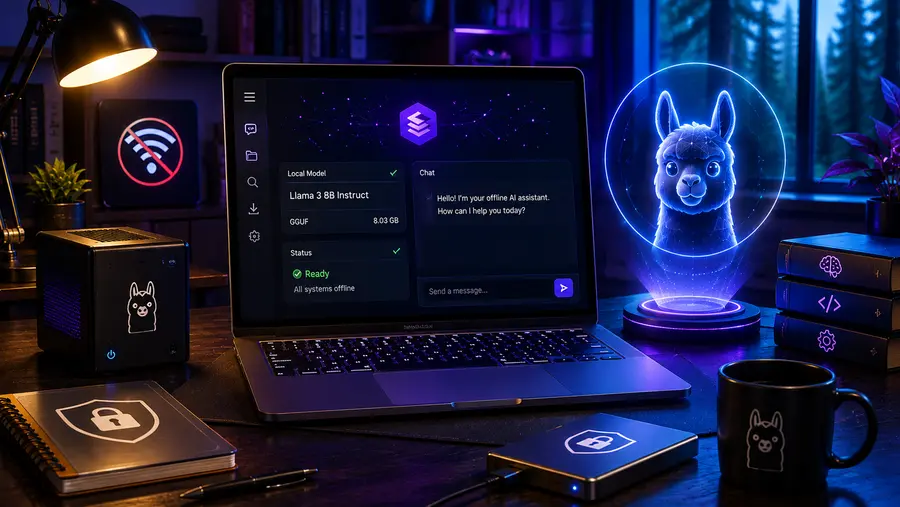
How to Set Up a Completely Offline AI Assistant with LM Studio: Step-by-Step Guide
Have you ever felt a sudden pang of anxiety right before pasting a sensitive work document, private journal entry, or proprietary code block into a cloud-based AI like ChatGPT? You are definitely not alone.
While cloud-based artificial intelligence has revolutionized how we work, it operates on a fundamental trade-off: you get incredible computing power, but you must hand over your data to a third-party server.
What if you could have the best of both worlds? What if you could run a highly capable, intelligent assistant directly on your own hardware, without ever connecting to the internet, and without paying a monthly subscription fee?
Thanks to an explosion in open-source AI and consumer-friendly software, this is no longer a pipe dream reserved for advanced software engineers. Enter LM Studio, a completely free, graphical application that allows anyone to download and run Large Language Models (LLMs) locally on their Mac, Windows, or Linux machine.
Let’s walk through exactly how to turn your everyday computer into a private, offline AI powerhouse.
Why Take Your AI Offline? The Power of Local LLMs
Before we start downloading software, it is important to understand why you would want to run an AI offline in the first place, and to set some realistic expectations.
For the past few years, the AI narrative has been dominated by massive corporate models hosted on supercomputers. However, a parallel revolution has been happening in the open-source community. Tech giants like Meta, Mistral, and Google have released smaller, highly optimized models (like Llama 3 and Gemma) to the public.
The benefits of running these models locally with LM Studio include:
- Total Privacy: Because the AI lives on your hard drive, your prompts, documents, and code never leave your computer. There is no telemetry, no data harvesting, and no risk of your private information being used to train a future model.
- Zero Subscriptions: Local AI is completely free. You are only using the electricity required to power your computer.
- Offline Functionality: You can brainstorm ideas on a remote cabin trip, on an airplane, or during an internet outage.
- No Censorship or Guardrails: Many cloud models will refuse to write certain types of fiction or engage in specific controversial debates. Open-source models, specifically “uncensored” variants, will generally follow your instructions without corporate guardrails.
The Candid Reality Check: I want to be completely honest with you—unless you have a massive, $5,000 desktop computer with dual graphics cards, your local AI is not going to beat the reasoning capabilities of GPT-4 or Claude 3.5 Opus. Local AI models are smaller. They are fantastic at summarizing text, rewriting emails, helping you code, and roleplaying, but they might struggle with highly complex, multi-step logical reasoning puzzles.
The Hardware Reality Check: Can Your PC Handle LM Studio?
AI models are basically giant mathematical equations. To run them quickly, your computer needs space to hold the math (Memory) and a fast processor to solve it (Compute).
If you try to run a massive model on an old, underpowered laptop, it will feel like you are watching paint dry. Here is a breakdown of what you actually need to run LM Studio effectively.
The Golden Rule of Local AI: It’s All About RAM and VRAM When we talk about computer memory for AI, we are looking at either your system RAM (the memory slotted into your motherboard) or your GPU VRAM (Video RAM, the memory soldered onto your graphics card).
- For Apple Mac Users: Apple Silicon (M1, M2, M3, M4 chips) uses “Unified Memory.” This is a massive advantage for local AI because your CPU and GPU share the exact same pool of memory. If you have an M2 MacBook with 16GB or 32GB of RAM, you possess a highly capable AI machine.
- For Windows/Linux PC Users: You ideally need a dedicated NVIDIA graphics card (GPU). AI models rely heavily on CUDA cores. A card like the RTX 3060 with 12GB of VRAM, or an RTX 4070, is the perfect sweet spot for running standard models.
Minimum vs. Recommended Specs:
- Bare Minimum: 8GB of RAM, a relatively modern 4-core CPU. (You will only be able to run very small, highly compressed models, and it will be quite slow).
- The Sweet Spot: 16GB to 32GB of RAM/Unified Memory, or an NVIDIA GPU with 8GB to 12GB of VRAM. This allows you to run robust 8-billion parameter models incredibly fast.
- Power User: 64GB+ of Unified Memory, or an RTX 4090 with 24GB of VRAM. This allows you to run massive, highly intelligent 70-billion parameter models.
Downloading and Installing LM Studio
Gone are the days when running local AI required navigating the command-line interface, installing Python environments, and dealing with broken dependencies. LM Studio acts almost exactly like a web browser or a standard chat application.
Step 1: Download the Application Navigate your web browser to the official website: lmstudio.ai. On the homepage, you will see prominent download buttons. The site will automatically detect your operating system.
- Mac Users: Ensure you select the Apple Silicon version if you are on an M-series chip.
- Windows Users: Download the standard installer.
- Linux Users: Download the AppImage file or follow the specific distro instructions.
Step 2: Installation Run the installer just like you would any other program. On a Mac, drag the LM Studio icon into your Applications folder. On Windows, click through the setup wizard.
Step 3: The First Launch When you open LM Studio for the first time, you will be greeted by a dark, sleek interface. It looks a bit like Discord or an advanced version of ChatGPT. On the left side, you have a vertical navigation bar with icons for the Home screen, the Search function, the Chat interface, and the Local Server settings.
You now have the engine installed. But right now, the engine doesn’t have any fuel. We need to download a brain.
Navigating the Hub: How to Choose and Download the Right Model
This is where many beginners get overwhelmed, but I promise it is simpler than it looks.
LM Studio connects directly to Hugging Face, which is essentially the GitHub of the AI world. It is a massive repository where researchers and developers upload their AI models for the public to use.
Click the Search icon (the magnifying glass) on the left sidebar. You will see a search bar at the top of the screen.
Understanding the Jargon: Parameters and Quantization
Before you type a name into the search bar, you need to understand two critical terms:
- Parameters (The “B” Number): You will see models labeled as 7B, 8B, or 70B. This stands for “Billions of Parameters.” It is the size of the AI’s brain.
- Sub-10B Models (e.g., Llama 3 8B, Mistral 7B): Fast, efficient, great for laptops.
- 30B to 70B Models: Highly intelligent, but require massive amounts of memory and a powerful desktop computer.
- Quantization (The “Q” Number): An uncompressed 8B model takes up about 16GB of memory. To make it fit on consumer laptops, developers compress (quantize) the model. You will see files labeled Q4, Q5, or Q8.
- Q4 (4-bit): The standard. It compresses the model by 70% while keeping 95% of its intelligence. Always start with a Q4 model.
Recommended Starter Models
In the search bar, type in one of the following highly recommended models:
- Meta-Llama-3-8B-Instruct: Meta’s highly intelligent, all-purpose model. It is fantastic at following instructions, writing code, and general conversation.
- Mistral-Nemo-12B: A slightly larger model developed by Mistral AI, known for incredibly natural phrasing and strong logic.
How to Download: When you search for “Llama 3 8B”, you will see a list of results on the left. Click one (look for uploaders like TheBloke or lmstudio-community). On the right panel, a list of specific files will appear. Scroll down until you find the file labeled Q4_K_M. Click the Download button next to it.
The model file will be between 4GB and 6GB. Depending on your internet speed, this might take a few minutes.
Configuring Your Local AI: Settings, Context Windows, and RAM Limits
Once the download is complete, click on the Chat icon (the speech bubble) on the left sidebar.
At the very top middle of the screen, you will see a dropdown menu that says “Select a model to load.” Click it, and select the model you just downloaded. You will hear your computer fans spin up for a second as the model is loaded from your hard drive into your active memory (RAM).
Before you start typing, look at the right-hand panel. This is your Configuration Sidebar. Tuning these settings will prevent your computer from freezing and dictate how the AI behaves.
Hardware Offloading (GPU Acceleration)
If you have a dedicated graphics card (or an Apple Silicon chip), you must tell LM Studio to use it; otherwise, it will use your much slower CPU.
- Look for the section titled Hardware Settings.
- Check the box for GPU Offload.
- There is a slider for “GPU Offload Max Layers.” If you have enough VRAM, slide this all the way to “Max.” This moves the entire brain of the AI onto your ultra-fast graphics card.
The System Prompt
In the Configuration panel, you will see a text box titled System Prompt. This is the invisible instruction set that guides the AI’s personality and behavior.
- Default: “You are a helpful, respectful, and honest assistant.”
- Custom: You can change this to anything! Try: “You are a senior software engineer. Answer queries with direct, concise code snippets and avoid long explanations.” The AI will adopt this persona permanently.
Context Length (Memory Limit)
This is a crucial setting. “Context” is how much text the AI can remember in a single conversation. If you paste a 50-page PDF into the chat, the AI needs a massive context window to read it.
- Every bit of context uses RAM. If you set the context too high, you will run out of memory, and your computer will crash.
- Recommendation: Leave it at the default (usually 4096 or 8192 tokens) for everyday chatting. Only increase it if you are specifically asking the AI to summarize large documents.
Chatting and Managing Workflows: Using the Interface
You are finally ready to talk to your offline AI.
At the bottom of the screen, there is a text input box. Type a prompt—for example, “Write a polite but firm email to a client who is two weeks late on their invoice.” Press Enter.
Because you are running the AI locally, you will see the words stream across the screen. Look at the very bottom right corner; you will see a metric called Tokens per Second (t/s). This is your generation speed. Anything above 10 t/s is perfectly readable. If it is crawling at 1 or 2 t/s, your model is too large for your hardware, or you forgot to enable GPU offloading.
Key Chat Features in LM Studio:
- Regenerate: If you don’t like the answer, click the little circular arrow next to the AI’s response to make it try again.
- Edit: You can actually edit the AI’s responses! This is amazing for “steering” the AI. If it writes a great essay but uses an annoying word, you can manually delete that word, and the AI will remember the corrected version moving forward.
- Multiple Chats: Click “New Chat” in the top left to start a separate conversation. The history is saved locally on your drive, so you can always come back to it.
Taking It Further: Turning LM Studio Into a Local Server (API)
For most people, the built-in chat interface is all they will ever need. But if you want to become a true AI power user, LM Studio has a hidden superpower: The Local Inference Server.
Click the Server icon (the double arrows) on the left sidebar.
When you click the big blue “Start Server” button, LM Studio stops acting just like a chat app and starts acting like the OpenAI API. It opens a dedicated port on your computer (usually http://localhost:1234).
Why is this amazing? It means you can connect other software on your computer to your local AI!
- Obsidian / Notion alternatives: You can install AI plugins in your note-taking apps and point them to LM Studio. You can chat with your notes completely offline.
- Coding Extensions: You can install tools like Continue.dev or Cline directly into VS Code, and point them to LM Studio. You now have an offline version of GitHub Copilot that autocomplete your code for free.
- Agents: You can build automated Python scripts that scrape the web, send the data to LM Studio via the local API, and save the summarized results to a spreadsheet.
By running the server, LM Studio becomes the silent, powerful AI brain powering your entire local operating system.
Read Here: Ollama vs LM Studio: Which is Better for Running Llama 3 on a Mac?
Conclusion
Setting up an offline AI assistant might sound like a task reserved for computer scientists, but tools like LM Studio have democratized the process, making it as simple as installing a web browser.
If you take your AI offline, you can reclaim absolute control over your digital privacy, escape the cycle of endless monthly software subscriptions, and ensure that your most sensitive thoughts, documents, and code remain exactly where they belong—on your own hard drive.
While it is vital to respect the physical hardware limitations of your PC by selecting appropriately sized and quantized models, the freedom of having a highly capable, always-on AI assistant that doesn’t require an internet connection is a massive upgrade to your daily workflow.
The open-source AI community is evolving at lightning speed, and by learning the basics of local deployment today, you are future-proofing your digital workspace for whatever incredible advancements come next.
Read Here: How Much RAM Do You Need to Run Mistral 8B Locally?
References
Brookings Institution. (2024). LLMs level up—better, faster, cheaper: June 2024 update to section 3 of “Generative AI for economic research”. Retrieved from https://www.brookings.edu/wp-content/uploads/2024/07/LLMs-level-up-Better-faster-cheaper.pdf
Hugging Face. (2026). TheBloke’s quantized models repository. Retrieved from https://huggingface.co/TheBloke
LM Studio. (2026). Discover, download, and run local LLMs. Retrieved from https://lmstudio.ai
Meta AI. (2026). Llama 3: Open foundation and chat models. Retrieved from https://ai.meta.com/llama/
Mistral AI. (2026). Mistral Nemo: State-of-the-art open models. Retrieved from https://mistral.ai/news/mistral-nemo/
Read Here: How to Fix Connection Refused Errors When Linking Ollama to Obsidian