If you’re seeing a “Connection Refused” error when linking Ollama to Obsidian, the most common causes are that the Ollama service is not running, the API endpoint is incorrect, or firewall settings are blocking local connections.
Start by confirming Ollama is active and accessible at the correct localhost address and port. Next, verify your Obsidian plugin configuration and API settings. In most cases, restarting Ollama, checking network permissions, and updating plugin settings quickly resolves the issue.
The Troubleshooting Guide: How to Fix ‘Connection Refused’ Errors When Linking Ollama to Obsidian
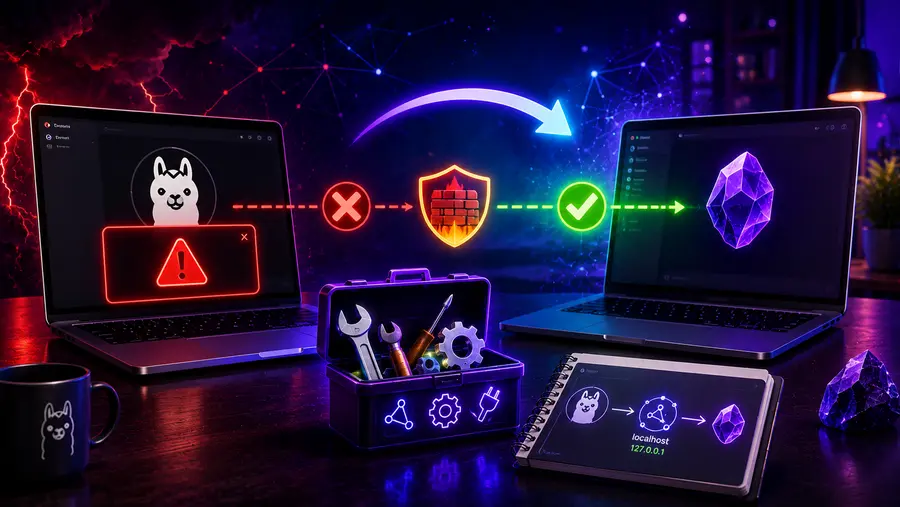
Integrating local artificial intelligence into your personal knowledge base feels like magic—until you hit a brick wall. You have downloaded Ollama, you have installed an AI plugin in Obsidian, you eagerly type your first prompt, and suddenly, you are greeted with a glaring, red error: Connection Refused ([Errno 111]) or ECONNREFUSED.
I completely understand how frustrating this is. You followed the tutorials to the letter, yet your note-taking app simply refuses to talk to your AI.
The truth is, running local AI involves connecting two entirely separate software architectures across your computer’s internal network.
When they fail to communicate, it is rarely a problem with the AI model itself; rather, it is almost always a strict security policy, a misspelled network address, or an invisible container wall blocking the path.
Let’s dive deep into the anatomy of the “Connection Refused” error. Break down the exact networking barriers that stand between Obsidian and Ollama, and get your local, privacy-first AI assistant up and running smoothly.
Understanding the ‘Connection Refused’ Error Between Obsidian and Ollama
Before we start changing settings, it helps to understand what the error actually means. When Obsidian attempts to generate text using an AI plugin (like Local GPT, Copilot Auto Completion Plus, or Ollama Assistant), it sends an HTTP request—just like a web browser—to a specific address on your computer where Ollama is supposed to be listening.
“Connection Refused” is your operating system’s blunt way of saying: “I knocked on the door you gave me, but absolutely nobody answered.”
This happens for a handful of distinct reasons:
- There is no server running at that address.
- The server is running, but it is explicitly ignoring the knock because the request came from an unauthorized application (a CORS issue).
- The server is listening at the wrong “door” (an IP binding mismatch).
- The server is locked inside an isolated environment that your main computer cannot reach (a Docker issue).
Let’s systematically diagnose and fix each of these root causes.
Cause #1: Verifying If the Ollama Background Service Is Active
The most common, yet frequently overlooked, reason for a connection refusal is that Ollama simply is not running in the background. When you open your terminal and type a command like ollama run llama3, Ollama starts up, runs the model, and allows you to chat. However, when you close that terminal, the server might shut down with it.
Obsidian plugins require Ollama to act as an “always-on” background API server, not just a command-line tool.
How to Fix It:
You need to force Ollama to serve its API locally.
- Open your command prompt or terminal.
- Type the following command: ollama serve
- Press Enter.
If you see a message stating that Ollama is listening on a specific port (usually 11434), leave this terminal window open! If you close it, the server will die, and Obsidian will immediately throw the connection refused error again. To verify it is working independently of Obsidian, open your standard web browser and navigate to http://localhost:11434. You should see a simple, plain text message saying: “Ollama is running”. If you see that, the server is alive.
Cause #2: Fixing CORS (Cross-Origin Resource Sharing) Restrictions for Obsidian
If Ollama is definitely running, but Obsidian still cannot connect, you have likely run into the CORS wall. This is the number one culprit for Obsidian users.
Obsidian is built using a framework called Electron. Because of this, it does not act like a normal web browser. When Obsidian makes a request to Ollama, it identifies its “origin” as app://obsidian.md (or a similar custom URI). By default, Ollama is designed with strict security protocols; it will immediately reject requests coming from bizarre, non-standard origins to prevent malicious scripts from hijacking your AI.
How to Fix It:
We need to tell Ollama that Obsidian is a trusted friend. We do this by setting an Environment Variable called OLLAMA_ORIGINS before starting the server.
- On macOS / Linux:
Open your terminal and run:
OLLAMA_ORIGINS=”app://obsidian.md*” ollama serve
(Alternatively, if you want to allow all applications to connect without restriction, you can use OLLAMA_ORIGINS=”*” ollama serve, though this is slightly less secure). - On Windows:
If you are using the command prompt, set the variable first:
set OLLAMA_ORIGINS=app://obsidian.md*
ollama serve
By explicitly allowing app://obsidian.md*, Ollama will lower its security shields just enough to let your Obsidian plugins communicate with the language model.
Cause #3: Resolving Localhost vs. 127.0.0.1 Host Binding Conflicts
Sometimes the problem lies in how your computer translates network names. In the networking world, localhost and 127.0.0.1 are often used interchangeably to mean “this computer.” However, they are not strictly the same thing beneath the surface—especially when IPv6 comes into play (where localhost might resolve to ::1 instead of 127.0.0.1).
If your Obsidian plugin is configured to point to http://localhost:11434, but Ollama is strictly bound to 127.0.0.1 (or vice versa), the connection can fail, resulting in a refusal.
How to Fix It:
- Check your Plugin Settings in Obsidian: Go to your AI plugin’s configuration page. Look at the “Base URL” or “Endpoint URL” setting.
- Toggle the Address: If it says http://localhost:11434, change it to http://127.0.0.1:11434. If it already says 127.0.0.1, switch it to localhost.
- Force the Host Binding (Optional but Recommended): If toggling doesn’t work, you can force Ollama to listen on all available local network interfaces by setting the OLLAMA_HOST environment variable to 0.0.0.0.
Run this in your terminal:
OLLAMA_HOST=”0.0.0.0″ OLLAMA_ORIGINS=”*” ollama serve
This combination ensures that no matter what internal IP address Obsidian uses to knock on the door, Ollama will hear it.
Cause #4: Correcting Port Mismatches and API Path Errors
A less common, but highly frustrating cause of connection errors is a simple typo in the port number or the API pathway.
Ollama defaults to port 11434. However, many AI plugins in Obsidian were originally built for OpenAI’s API, which commonly defaults to port 3000 or 8080 for local mock-servers. If your plugin is trying to send data to port 3000 while Ollama is waiting at 11434, the connection will be refused.
Furthermore, Obsidian plugins need to know exactly where to send the prompt. Ollama uses specific URL paths for different tasks (e.g., /api/generate or /api/chat).
How to Fix It:
- Open your Obsidian Settings and navigate to your specific AI plugin.
- Ensure the Port is explicitly set to 11434.
- Ensure the Base URL does not have a trailing slash if the plugin doesn’t expect one. It should generally be http://127.0.0.1:11434.
- If your plugin has an “API Type” dropdown, ensure it is set to Ollama and not OpenAI or Anthropic. If the plugin only supports the OpenAI format, you are in luck: recent versions of Ollama have native OpenAI compatibility built-in. In that specific case, you would set the Base URL to http://127.0.0.1:11434/v1.
Cause #5: Overcoming Docker Container Network Isolation
If you are running Ollama inside a Docker container (a popular method for keeping software isolated), you are dealing with a completely separate virtual network.
When Obsidian (running natively on your host OS) tries to connect to localhost:11434, it is looking at your main computer. But Ollama is trapped inside a Docker container, listening to its own internal localhost. The connection is refused because Obsidian cannot see across the container wall.
How to Fix It:
You have to intentionally punch a hole in the Docker network to link the two environments.
- If Ollama is in Docker, and Obsidian is Native:
You must publish the ports when starting the Docker container using the -p flag.
Run your container with: docker run -d -v ollama:/root/.ollama -p 11434:11434 –name ollama ollama/ollama
This maps the container’s internal port 11434 to your computer’s external port 11434, allowing Obsidian to connect via http://localhost:11434. - If Obsidian (via a tool like n8n or AutoGPT) is in Docker, and Ollama is Native:
The containerized app cannot use localhost to find your native computer. Instead of http://localhost:11434, you must configure the plugin/app to point to http://host.docker.internal:11434. This special address tells the Docker container to route the request out to the host operating system.
A Complete Diagnostic Checklist to Guarantee a Seamless Connection
Troubleshooting local networking can feel like chasing ghosts. To make sure you have covered all your bases, use this final diagnostic checklist. If you follow these steps sequentially, you will almost certainly eliminate the “Connection Refused” error.
- Kill Existing Processes: Close Obsidian completely. Open your terminal and kill any existing Ollama processes. (On Windows, you can use Task Manager; on Mac/Linux, use pkill ollama).
- Launch with Variables: Open a fresh terminal and start Ollama with maximum compatibility variables:
OLLAMA_HOST=”0.0.0.0″ OLLAMA_ORIGINS=”*” ollama serve - The Browser Test: Open Chrome or Safari and go to http://127.0.0.1:11434. You must see “Ollama is running”. If you don’t, your installation is broken, or a firewall is actively blocking the port.
- The API Test: Open a new terminal tab and test the API directly using curl:
curl http://127.0.0.1:11434/api/tags
This should return a JSON list of your installed models (like llama3 or mistral). If it returns an error, the server is running but unresponsive. - Configure Obsidian: Open Obsidian, navigate to your AI plugin, and set the URL to exactly http://127.0.0.1:11434. Select a model you know you have downloaded.
- Test the Connection: Trigger a prompt in Obsidian.
By systematically breaking down the barriers between the application layer and the network layer, you take back control of your software.
To help visualize exactly how these variables interact to either block or allow your connection, use the interactive network simulator below. By adjusting your configuration settings, you can see exactly which architectural barrier is causing your specific connection failure.
Read Here: How Much RAM Do You Actually Need to Run Mistral 8B Locally?
Conclusion
Encountering a “Connection Refused” error when pairing Obsidian with Ollama is a rite of passage for anyone stepping into the world of local, private AI.
While it is incredibly frustrating to have your workflow halted by a seemingly opaque technical block, the solution is rooted in basic network security and routing principles.
Whether the issue is a strict CORS policy rejecting Obsidian’s unique application signature, a simple IP binding mismatch between localhost and 127.0.0.1, or an isolated Docker container hiding your server, these problems are all highly solvable.
By taking a few minutes to configure your environment variables correctly and ensuring your ports match up, you bridge the gap between your personal knowledge base and your local language model. Once that connection is solidly established, you unlock a completely private, subscription-free AI assistant that lives directly inside your notes, fundamentally transforming how you interact with your own thoughts and data.
References
Ahn, J. (2024, April 30). Obsidian with Ollama [Video]. YouTube. https://www.youtube.com/watch?v=9YYB8a_ehc4
N8n Community. (2025). Unable to connect n8n to local Ollama instance (ECONNREFUSED error). n8n Community Forum. https://community.n8n.io/t/unable-to-connect-n8n-to-local-ollama-instance-econnrefused-error/90508
Ollama. (2024). How to solve ConnectionError ([Errno 111] connection refused) · Issue #2132. GitHub. https://github.com/ollama/ollama/issues/2132
Open {re}Source. (2026). Running a local AI inside Obsidian with Ollama. Open {re}Source. https://openresource.dev/articles/running-a-local-ai-inside-obsidian-with-ollama/
Stack Overflow. (2025). Connection refused ([Errno 111]) when using Ollama with AutoGPT. Stack Overflow. https://stackoverflow.com/questions/79376931/connection-refused-errno-111-when-using-ollama-with-autogpt
Read Here: Ollama vs LM Studio: Which is Better for Running Llama 3 on a Mac?