No GPU? Here’s How Llama Still Runs on Your Machine
Can you run Llama locally without a dedicated GPU? Yes. You can run smaller Llama models directly on your PC’s CPU using local AI tools such as Ollama or llama.cpp.
You don’t need an expensive NVIDIA GPU just to experiment with local Llama models.
The trade-off is speed.
A CPU-only setup generally takes longer to generate responses than a well-equipped GPU system, especially with larger models. So the key is to choose a small, quantized Llama model that fits comfortably in your available RAM.
For beginners, Llama 3.2 1B or 3B is a sensible place to start. Ollama currently provides these models specifically as small text models, and its Llama 3.2 listing shows approximately 1.3GB for the 1B model and 2.0GB for the 3B model, with a listed 128K context window.
In this guide, you’ll learn how to run Llama locally without a GPU, how much RAM you need, how to use Ollama, how to force CPU-only inference with llama.cpp, how to improve CPU performance, and which Llama models make sense for a GPU-free PC.
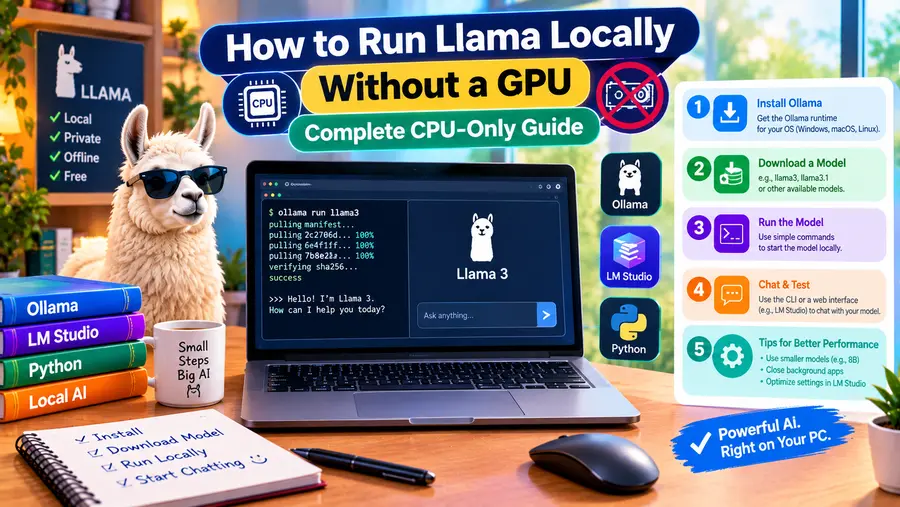
Quick Answer: Can You Run Llama Without a GPU?
Yes. Llama can run entirely on a CPU.
The easiest approach is:
- Install a local AI runtime such as Ollama.
- Download a small Llama model.
- Run it from your terminal.
- Let your CPU handle inference.
For example, with Ollama:
ollama run llama3.2
Ollama’s current Llama 3.2 package uses the 3B text model by default, while the 1B version can be selected explicitly:
ollama run llama3.2:1b
The current Ollama library identifies both versions as text-only Llama 3.2 models designed for local use.
For more explicit CPU control, llama.cpp supports CPU inference and provides the –device none option to disable higher-priority device backends.
What Does “Running Llama Without a GPU” Mean?
When you use a GPU, the graphics processor performs much of the numerical computation required for AI inference.
Without a dedicated GPU, the CPU performs the inference instead.
The basic workflow becomes:
Your prompt
↓
Llama model
↓
CPU + system RAM
↓
Generated response
Your computer still needs enough RAM to hold the model and its working data.
The important difference is that you don’t rely on dedicated GPU VRAM.
Read Here: How to Run AI Models Locally on a PC
Is a GPU Required to Run Llama?
No.
llama.cpp is specifically designed for local LLM inference across different hardware configurations. Its current project documentation lists CPU support along with multiple CPU instruction-set optimizations and also supports GPU backends when available.
That means a PC with:
- Intel CPU
- AMD CPU
- Apple Silicon
- other supported CPU architectures
can potentially run a compatible Llama model locally.
The practical question is not:
“Can a CPU run Llama?”
It can.
The better question is:
“Which Llama model can my CPU run at a reasonable speed?”
Which Llama Model Should You Use Without a GPU?
For CPU-only systems, smaller models are usually easier to handle.
Good starting choices
Llama 3.2 1B
Very small and suitable for basic experimentation.
Llama 3.2 3B
A more capable small model for chat, summarization and rewriting.
Ollama’s current Llama 3.2 documentation describes the 3B model as stronger than several similarly sized models on tasks including instruction following, summarization, prompt rewriting and tool use.
For a CPU-only beginner setup, 3B is a more interesting starting point than jumping immediately to a much larger Llama model.
How Much RAM Do You Need to Run Llama Without a GPU?
There isn’t one universal number.
Your actual RAM requirement depends on:
- model size
- quantization
- context length
- operating system
- other applications
- inference runtime
- CPU architecture
A practical starting guide is:
| System RAM | What to expect |
| 8GB | Small models and basic experimentation |
| 16GB | Better experience with small-to-medium models |
| 32GB | More flexibility for larger quantized models |
| 64GB+ | Useful for much larger CPU-based models |
These are practical guidelines rather than hard compatibility limits.
A model file might appear to be only a few gigabytes, but the running process needs additional memory for the runtime, context and operating system.
Read Here: How Much RAM Do You Need for Local AI?
Why Quantization Matters for CPU-Only Llama
If you’re running Llama without a GPU, quantization becomes particularly important.
Quantization reduces the numerical precision used to represent model weights.
Instead of a relatively large higher-precision model, you can use formats such as:
- Q4
- Q5
- Q6
- Q8
A quantized model generally needs less memory than the corresponding higher-precision version.
That makes it more practical on a CPU-only PC.
llama.cpp supports integer quantization formats from very low-bit representations through 8-bit and documents quantization as a way to reduce memory use and improve inference efficiency.
Simple example
Instead of trying to run:
Llama → high precision → large memory footprint
you might use:
Llama → Q4 quantization → smaller memory footprint
The trade-off is that aggressive quantization can reduce model fidelity.
Read Here: What Is AI Model Quantization?
The Easiest Way to Run Llama Without a GPU: Ollama
For beginners, Ollama is probably the simplest place to start.
You don’t need to manually configure a complicated inference pipeline.
After installing Ollama, you can run:
ollama run llama3.2
This currently launches the Llama 3.2 3B model in the Ollama library.
For a smaller model:
ollama run llama3.2:1b
Ollama’s current library lists the 1B model at approximately 1.3GB and the 3B model at approximately 2.0GB for the listed default packages.
Remember that the download/package size is not the same as the total RAM required while the model is running.
Step-by-Step: Run Llama on a CPU With Ollama
Step 1: Install Ollama
Download and install Ollama for your operating system.
You can then open a terminal:
Windows: PowerShell or Command Prompt
Linux: Terminal
macOS: Terminal
Step 2: Download a Small Llama Model
Start with the 1B model:
ollama run llama3.2:1b
Or use the larger 3B model:
ollama run llama3.2
Ollama’s current library identifies Llama 3.2 as a 1B/3B text-model family and provides direct ollama run commands for both.
Step 3: Start Chatting
Once the model loads, enter a prompt such as:
Explain quantum computing in simple language.
Or:
Summarize this paragraph in five bullet points.
The model generates the response locally.
Step 4: Test Its Speed
Try several short prompts first.
Pay attention to:
- response latency
- tokens generated per second
- RAM usage
- CPU utilization
- system temperature
If your PC becomes sluggish, switch to a smaller model or reduce the context size.
How to Run Llama With llama.cpp in CPU-Only Mode
If you want more control than a beginner-oriented runtime provides, llama.cpp is an excellent option.
Its current documentation provides prebuilt binaries, build instructions and direct model-running commands.
It also provides explicit CPU controls.
The current documentation explains that –device none can be used to disable higher-priority backends and force CPU execution.
Step-by-Step CPU-Only Setup With llama.cpp
Step 1: Install llama.cpp
The project currently provides several installation options, including:
- pre-built binaries
- Docker
- building from source
The official quick start lists these approaches on the project’s GitHub repository.
For most beginners, using a pre-built release is easier than compiling from source.
Step 2: Get a Compatible Llama Model
You need a model format supported by your llama.cpp build.
For CPU-oriented local inference, GGUF models are commonly used in the llama.cpp ecosystem.
Choose a quantized Llama model that fits your RAM.
For example, you might encounter filenames resembling:
Llama-3.2-3B-Instruct-Q4_K_M.gguf
The exact filename, quantization variant and repository can change, so check the current model page before downloading.
Also check the model’s license and usage conditions. Meta’s Llama 3.2 models are distributed under the Llama 3.2 Community License and its associated acceptable-use terms.
Step 3: Start llama.cpp in CPU-Only Mode
A current CPU-focused command can look like:
llama-cli \
-m /path/to/your/model.gguf \
–device none \
-t 8 \
-c 4096
On Windows, the equivalent may look like:
llama-cli.exe -m “C:\models\your-model.gguf” –device none -t 8 -c 4096
The important options are:
–device none
Explicitly disables device backends so the run uses the CPU.
-t 8
Uses eight CPU threads. The optimal value depends on your processor; llama.cpp’s current CLI documentation exposes the thread setting through -t, –threads.
-c 4096
Sets a 4,096-token context size. llama.cpp documents -c, –ctx-size as the context-size setting.
You can experiment with the thread and context settings to find a balance between speed and memory use.
Why Use llama.cpp Instead of Ollama?
Both can be useful.
Choose Ollama when you want:
- simple installation
- easy model management
- straightforward commands
- local API access
- beginner-friendly setup
Choose llama.cpp when you want:
- more control
- explicit CPU-only execution
- thread tuning
- context controls
- low-level inference options
- experimentation with GGUF models
The two approaches aren’t mutually exclusive.
Can Llama 3.2 3B Run on an 8GB PC Without a GPU?
Yes, it can be a reasonable experiment.
Ollama currently lists the Llama 3.2 3B package at approximately 2GB.
But don’t interpret that as:
“The model needs only 2GB RAM.”
Your PC also needs memory for:
- Windows or Linux
- the inference runtime
- context
- the conversation
- other applications
An 8GB PC therefore has much less headroom than a 16GB system.
For the most comfortable experience on an 8GB machine, start with the 1B model.
Can You Run Llama 3.2 3B on 16GB RAM Without a GPU?
Yes, 16GB gives you considerably more breathing room.
A CPU-only 3B model is a much more realistic everyday experiment on a 16GB PC than on an 8GB machine.
You can also keep a few normal desktop applications open, although performance will still depend on your CPU.
Can You Run Llama 8B Without a GPU?
Potentially, yes.
A quantized 8B-class model can be run on CPU-only systems with enough RAM.
But the experience will depend strongly on:
- quantization
- CPU speed
- number of CPU cores
- memory bandwidth
- context size
- operating system
- runtime
An 8B model is significantly more demanding than Llama 3.2 3B.
For a first CPU-only experiment, starting with 1B or 3B is usually simpler.
Can You Run Llama 70B Without a GPU?
Technically, large quantized Llama models can run on CPU systems with enough system memory.
The bigger problem is performance and memory.
A large model may consume tens of gigabytes of RAM before accounting for other system requirements.
So while CPU-only inference is possible, it can become impractically slow on ordinary desktop hardware.
For a typical consumer PC without a GPU, a smaller Llama model is usually a more practical choice.
How Fast Is Llama Without a GPU?
There is no single answer.
CPU performance depends heavily on:
- processor generation
- number of cores
- vector instruction support
- memory bandwidth
- quantization
- model size
- context length
- runtime settings
For example, llama.cpp supports CPU-specific optimizations for x86 architectures including AVX, AVX2, AVX512 and AMX, where supported by the processor.
A modern desktop CPU can therefore behave very differently from an older laptop CPU.
Instead of promising a particular tokens-per-second number, test the model on your own machine.
What Makes a CPU Good for Local Llama?
When buying or choosing a CPU for local AI, pay attention to:
CPU cores
More cores can help with parallel workloads.
Single-core performance
Generation isn’t simply a matter of counting cores. Per-core performance also matters.
SIMD/instruction support
Modern CPU instruction sets can accelerate supported operations.
Memory bandwidth
LLM inference can be heavily influenced by how quickly the CPU can move model data through memory.
RAM capacity
A model that doesn’t fit comfortably in memory will create a poor experience regardless of CPU power.
Should You Use All CPU Cores?
Not necessarily.
A common beginner assumption is:
“More threads always means faster generation.”
That’s not guaranteed.
Start with the runtime’s default or a moderate thread count.
Then test.
For example:
-t 4
then:
-t 8
then:
-t 12
and compare performance.
Higher thread counts can increase CPU utilization and heat without producing proportional gains.
llama.cpp exposes explicit thread controls so you can tune this behavior.
How to Make CPU-Only Llama Run Faster
1. Use a smaller model
This is often the biggest improvement.
Try:
1B → 3B → 8B
rather than starting with a huge model.
2. Use quantization
Q4 or another suitable lower-precision format can significantly reduce memory requirements.
This may also make CPU inference more manageable.
3. Reduce the context size
A very large context can increase memory consumption.
Start with a reasonable context size and increase it only when you actually need it.
llama.cpp provides explicit context-size controls through -c / –ctx-size.
4. Close memory-heavy applications
Before running a local model, close applications such as:
- Chrome with many tabs
- video editors
- virtual machines
- large development environments
- games
This frees RAM for inference.
5. Use an SSD
Store your model on an SSD.
This doesn’t magically make CPU calculations faster, but it can make model loading and general system responsiveness better than relying on a slow hard drive.
6. Keep the PC cool
Long AI sessions can keep the CPU under heavy load.
If the processor gets too hot, thermal throttling can reduce performance.
Does Context Length Affect CPU Performance?
Yes.
A larger context means the model may need to process and retain more information.
For example, these are very different workloads:
Prompt A
“Explain photosynthesis.”
versus:
Prompt B
“Analyze this 100-page document and compare its arguments.”
Longer context can consume substantially more memory and computation.
This is one reason the maximum context shown on a model page should not be treated as the context you should always use.
A 128K context capability doesn’t mean a CPU-only PC will comfortably run 128K-token conversations.
Ollama currently lists Llama 3.2 with a 128K context window, but practical CPU-only use may warrant much smaller context settings depending on your hardware.
Can You Use Llama Offline Without a GPU?
Yes.
GPU availability and internet connectivity are separate issues.
Once the model and runtime are already installed on your PC, CPU-only Llama can run locally.
The workflow becomes:
Internet
↓
Download model + runtime
↓
Disconnect
↓
CPU
↓
Llama
↓
Local response
For sensitive documents, local processing can also reduce the need to send the content to a cloud AI service, although you should still examine the software’s network behavior and integrations.
Can You Use Llama for Writing Without a GPU?
Yes.
Small Llama models can be useful for:
- rewriting
- summarization
- brainstorming
- email drafting
- note cleanup
- outlining
- simple explanations
Ollama’s current Llama 3.2 documentation specifically lists summarization and prompt rewriting among the 3B model’s capabilities.
For longer or more demanding creative writing, larger models may perform better, but they also require more resources.
Read Here: Best Local AI Models for Writing
Can You Use Llama for Coding Without a GPU?
Yes, particularly for smaller coding tasks.
You can use a local model to:
- explain code
- generate small functions
- rewrite code
- identify obvious errors
- create shell commands
- explain APIs
However, CPU-only performance can become frustrating for very large coding contexts or complex repository-level tasks.
A smaller model that responds quickly may be more useful than a huge model that takes a long time to answer.
What About Llama on an Old Laptop?
This is where expectations matter.
An older laptop may technically run Llama but produce slow responses.
Before assuming your laptop is unsuitable, check:
- RAM
- CPU generation
- CPU cores
- SSD
- thermal condition
- available memory
Try the 1B model first.
If it performs acceptably, test 3B.
Only then consider something larger.
A Practical Model-Size Strategy
Instead of downloading a huge model immediately, use this progression:
Llama 1B
↓
Test speed and quality
↓
Llama 3B
↓
Test again
↓
Larger quantized Llama
↓
Only if your hardware can handle it
This saves time, storage and frustration.
CPU-Only Llama: 8GB vs 16GB vs 32GB vs 64GB
| RAM | Suggested approach |
| 8GB | Llama 3.2 1B; try 3B cautiously |
| 16GB | Llama 3.2 3B; some larger quantized models |
| 32GB | Larger quantized models become more practical |
| 64GB+ | More room for large CPU-based models |
These are practical starting points rather than hard hardware requirements.
GPU-less inference can work with different configurations, but RAM and CPU performance become increasingly important as model size grows.
Common Problems When Running Llama Without a GPU
The model is extremely slow
Try a smaller model or more efficient quantization.
Also test different CPU-thread settings.
The PC freezes or becomes unresponsive
Your system may be running low on available RAM.
Close applications or switch to a smaller model.
The model won’t load
Check whether the model actually fits within your available memory.
Remember that the model needs more than just the space shown by its download size.
The CPU usage is 100%
This isn’t automatically a problem.
CPU inference can legitimately use a large portion of your processor.
However, watch system temperature and responsiveness during long sessions.
The response quality isn’t good
Try:
- a larger model
- a better instruction-tuned variant
- a higher-quality quantization
- a more specific prompt
Model size and quantization aren’t the only factors that determine output quality.
Ollama vs llama.cpp for CPU-Only Llama
| Feature | Ollama | llama.cpp |
| Beginner friendly | Excellent | Moderate |
| Installation | Easy | More involved |
| CPU-only control | Less explicit | Very explicit |
| Model management | Easy | More manual |
| Fine-grained tuning | Moderate | Extensive |
| GGUF control | Less manual | Excellent |
| API support | Yes | Yes |
| Best for | Beginners | Advanced users |
Ollama’s current Llama 3.2 library provides simple ollama run commands, while llama.cpp exposes lower-level controls such as CPU threads, context size and device selection.
Can You Run Llama Completely Without Any GPU Acceleration?
Yes.
With llama.cpp, the current documentation specifically describes –device none as a way to disable higher-priority backends and force CPU execution.
This is useful when you want to make sure your test is genuinely CPU-only.
For example:
llama-cli \
-m model.gguf \
–device none \
-t 8 \
-c 4096
That makes the intent explicit:
CPU only. No GPU backend.
Is CPU-Only Llama Worth It?
For many situations, yes.
CPU-only Llama makes sense when:
- you don’t own a dedicated GPU
- you want to learn local AI
- you have a modest PC
- you’re interested in offline AI
- you mainly need short prompts
- you don’t mind slower responses
- you want to experiment before buying hardware
It becomes less attractive when you need:
- very large models
- high generation speed
- long context at high speed
- many simultaneous users
- real-time multimodal AI
- production-scale inference
A Simple CPU-Only Llama Setup for Beginners
If you’re completely new to local AI, start here:
Hardware
16GB RAM
and a reasonably modern CPU.
Software
Ollama
Model
Llama 3.2 3B
Command
ollama run llama3.2
The current Ollama library identifies this as the 3B Llama 3.2 model.
If your PC struggles, switch to:
ollama run llama3.2:1b
This is a simple way to learn local AI before moving to larger models.
Final Thoughts
You don’t need a dedicated GPU to run Llama locally.
A modern CPU, enough RAM and an appropriately sized quantized model can be enough to get started.
For beginners, Llama 3.2 1B or 3B is a practical starting point, especially on a system with 8GB or 16GB RAM. Ollama makes the setup simple, while llama.cpp provides more precise CPU-only control for users who want to tune performance.
The most important lesson is:
Don’t choose the biggest Llama model your PC can technically load. Choose the model your CPU can run comfortably.
Start small, use quantization, keep the context reasonable and test the model on your real workload.
Once you’re comfortable with CPU-based inference, you can decide whether upgrading RAM, adding a GPU or moving to a larger model is actually worthwhile.
Frequently Asked Questions
Can Llama run without a GPU?
Yes. Llama can run on CPU-only systems using local inference software such as Ollama and llama.cpp. The main trade-off is that CPU inference is generally slower than a suitable GPU-accelerated configuration.
Can I run Llama on an 8GB RAM PC?
Yes, particularly smaller models such as Llama 3.2 1B. Llama 3.2 3B can also be attempted, but an 8GB system leaves less memory headroom for the operating system and other applications.
Can I run Llama 3.2 3B without a GPU?
Yes. Llama 3.2 3B is a relatively small model and can be run locally using CPU inference. Ollama currently lists the 3B package at about 2GB, although total runtime memory usage is higher.
Can I run Llama 8B on CPU?
Yes, with enough system memory and a suitable quantized model. Performance depends heavily on your CPU, RAM bandwidth, quantization and context length.
Can Llama run on 16GB RAM without a GPU?
Yes. Smaller Llama models are practical on many 16GB systems. Larger models may require more RAM and may run slowly.
What is the best Llama model for a CPU-only PC?
For beginners, smaller Llama models are generally easier to run. Llama 3.2 1B and 3B are current small options in the Ollama library.
Is Llama faster on CPU or GPU?
For supported workloads, a capable GPU can provide much faster inference than CPU-only execution. CPU inference is useful when you don’t have a suitable GPU or prioritize local experimentation over maximum speed.
How much RAM does Llama need without a GPU?
It depends on model size, quantization and context. 8GB can be enough for very small models, 16GB is more comfortable for small models, and 32GB or more gives you greater flexibility.
Can I run Llama completely offline?
Yes. Once the required model and software are downloaded, compatible local inference software can run the model without sending prompts to a cloud AI service.
What is the easiest way to run Llama locally without a GPU?
For beginners, install Ollama and run:
ollama run llama3.2
For an even smaller model:
ollama run llama3.2:1b
Ollama currently provides both Llama 3.2 1B and 3B packages.
How can I force llama.cpp to use only the CPU?
Use the runtime device option:
–device none
The current llama.cpp documentation explains that this can disable higher-priority backends and force CPU execution.