
How Do I Build a Local AI Coding Assistant?
You can build your own local AI coding assistant that runs directly on your PC instead of sending your source code to a cloud AI service.
A practical setup uses three main components:
- Ollama to run the AI model locally
- VS Code as the development environment
- Continue to provide AI chat, code editing, autocomplete and agent-style features
This setup lets you ask AI to explain code, generate functions, fix errors, write tests, refactor files and work with your project context.
You can even use a completely local model for the core AI processing. VS Code currently supports locally hosted models such as Ollama, while Continue provides Chat, Edit, Agent and Autocomplete features.
In this guide, you’ll learn how to build a local AI coding assistant step by step, which models to use, how much RAM you need, how to configure Continue, and how to use the assistant safely on a real coding project.
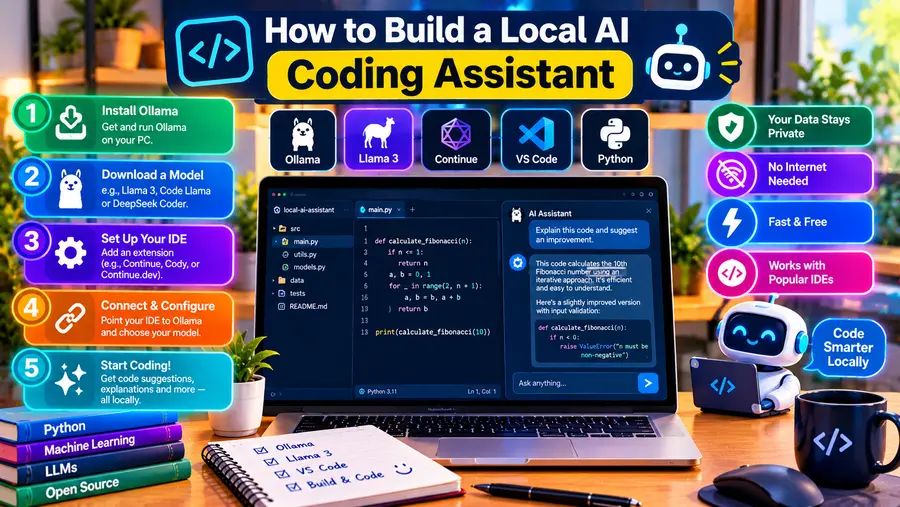
Quick Answer: How Do You Build a Local AI Coding Assistant?
The basic setup looks like this:
Your code
↓
VS Code
↓
Continue
↓
Ollama
↓
Local coding model
↓
Response / code changes
A beginner-friendly setup is:
VS Code + Ollama + Continue + Qwen2.5-Coder
For a more capable system, you can use Qwen3-Coder 30B for chat, editing and agent-style tasks. Continue currently recommends Qwen3-Coder 30B among its open models for Chat/Edit, while its autocomplete documentation recommends small Qwen2.5-Coder models for fast inline completion.
What Is a Local AI Coding Assistant?
A local AI coding assistant is an AI-powered programming tool where the underlying model runs on your own computer or another machine you control.
Instead of this:
VS Code
↓
Internet
↓
Cloud AI
you can build:
VS Code
↓
Continue
↓
Ollama
↓
Local AI model
The advantage is that your source code can remain within your local environment when the entire workflow is configured locally.
However, “local” does not automatically mean every component is offline. Extensions, package managers, Git repositories, documentation sites and other integrations can still access the internet. Your privacy therefore depends on the complete setup.
What Can a Local AI Coding Assistant Do?
A good local coding assistant can help with much more than generating code.
You can use it to:
Generate code
For example:
Create a Python function that validates an email address.
Explain existing code
Explain what this JavaScript function does.
Debug errors
Find the likely cause of this Python traceback and suggest a fix.
Refactor
Refactor this function to make it easier to maintain without changing its behavior.
Write tests
Create unit tests for this API endpoint.
Review code
Look for security, performance and error-handling problems in this file.
Document code
Add clear Python docstrings to these functions.
Work with multiple files
An agent-style assistant can use relevant project files as context and, when configured with tool support, make changes across a codebase. Continue’s current documentation describes Agent mode as capable of handling development tasks with tools, while Chat and Edit provide more controlled workflows.
What Do You Need to Build One?
You don’t need an expensive AI workstation to get started.
A basic setup requires:
1. A computer
Windows, macOS or Linux can be used.
2. VS Code
VS Code provides the editor, terminal and development environment.
3. Ollama
Ollama runs compatible language models locally and exposes a local API.
4. An AI coding model
Examples include:
- Qwen2.5-Coder
- Qwen3-Coder
- DeepSeek Coder
- other compatible coding models
5. Continue
Continue integrates local models into the IDE and provides:
- Chat
- Edit
- Apply
- Autocomplete
- Agent features
Continue describes itself as an open-source AI code assistant for VS Code and JetBrains.
What Hardware Do You Need?
Your hardware requirements depend primarily on the model.
For example, the current Ollama Qwen2.5-Coder family includes models from 0.5B through 32B parameters, with commonly listed package sizes ranging from hundreds of megabytes to about 20GB.
Qwen3-Coder 30B is considerably larger: Ollama currently lists it at about 19GB with a 256K native context window.
A practical starting point is:
| PC | Suggested setup |
| 8GB RAM | 1.5B–3B coding model |
| 16GB RAM | 7B-class coding model |
| 32GB RAM | 14B–30B quantized models |
| 64GB+ RAM | Larger models and heavier workflows |
| Dedicated GPU | Helpful for much faster inference |
| No GPU | CPU inference is possible, but slower |
These are practical guidelines rather than strict requirements.
Model quantization, context size, CPU, GPU/VRAM and other applications can change the actual memory requirement.
Which AI Coding Model Should You Use?
There’s no single model that’s ideal for every computer.
Qwen2.5-Coder 1.5B: Best for Fast Autocomplete
Continue currently recommends Qwen2.5-Coder 1.5B for local autocomplete.
Ollama lists the 1.5B package at about 986MB with a 32K context window.
This makes it particularly useful when your priority is:
- inline suggestions
- fast response
- low memory usage
- everyday coding completion
It isn’t necessarily the model you’d choose for complex repository-wide reasoning.
Qwen2.5-Coder 7B: A Good Mid-Range Choice
Ollama currently lists the Qwen2.5-Coder 7B model at approximately 4.7GB with a 32K context window.
It’s an attractive option for a 16GB-class PC.
It can be used for:
- code generation
- debugging
- rewriting
- explanations
- test generation
- code review
Continue’s current documentation includes Qwen2.5-Coder 7B among its local model options.
Qwen3-Coder 30B: For More Advanced Local Coding
If you have more capable hardware, Qwen3-Coder 30B is an interesting option.
Ollama describes it as a coding-focused model designed for agentic coding and long-context software-engineering tasks. It has 30B total parameters with 3.3B activated per token and supports a 256K-token native context according to the current Ollama listing.
Continue currently lists Qwen3-Coder 30B among its recommended open models for Chat/Edit, and its model capability documentation lists tool use for Qwen 3 Coder.
This makes it more suitable for:
- multi-file changes
- larger repositories
- codebase analysis
- debugging
- refactoring
- agent workflows
But don’t assume you should actually run a 256K context on an ordinary PC. Large contexts can require substantial memory.
Start smaller and increase the context only when necessary.
Best Ways to Build a Local AI Coding Assistant
The easiest way to build a local AI coding assistant is to install VS Code, Ollama and Continue, then connect a coding model such as Qwen2.5-Coder or Qwen3-Coder. Use a small model for fast autocomplete and a larger model for debugging, editing and agent-style tasks.
Step 1: Install VS Code
Download and install Visual Studio Code for your operating system.
VS Code can be used without a GitHub or Copilot subscription, and its current documentation explicitly supports local models such as Ollama.
Create or open a project.
For example:
my-project/
├── src/
├── tests/
├── README.md
├── requirements.txt
└── main.py
Step 2: Install Ollama
Install Ollama for your operating system.
Ollama provides local model execution and a local API that applications can use to communicate with the model.
Once installed, open your terminal and verify that it is available:
ollama –version
Then check that the service is responding:
curl http://localhost:11434
Continue’s current troubleshooting documentation also uses the local localhost:11434 endpoint when checking an Ollama connection.
On Windows, you can also simply run Ollama from the installed application and use PowerShell for model commands.
Step 3: Download a Coding Model
For a modest computer, start with:
ollama pull qwen2.5-coder:7b
For a smaller system:
ollama pull qwen2.5-coder:1.5b
For a more powerful system:
ollama pull qwen3-coder:30b
Ollama currently provides these coding model families and their corresponding tags.
You can check the models installed on your computer with:
ollama list
Step 4: Test the Model Before Connecting It to VS Code
Before configuring the IDE, test the model directly.
For example:
ollama run qwen2.5-coder:7b
Then try:
Write a Python function that reads a JSON file
and returns all users whose age is greater than 30.
You can also test debugging:
Why does this Python code raise a TypeError?
Explain the problem and show the corrected version.
If the model responds properly, your local inference setup is working.
Step 5: Install Continue in VS Code
Open the VS Code Extensions panel.
Search for:
Continue
Install the Continue extension for VS Code.
Continue currently provides:
- Chat
- Edit
- Agent
- Autocomplete
within the IDE.
Step 6: Connect Continue to Ollama
Continue supports Ollama as a local model provider.
You can configure models in its YAML configuration.
The current user-level configuration is:
Windows
%USERPROFILE%\.continue\config.yaml
macOS/Linux
~/.continue/config.yaml
Continue documents these paths in its current configuration guide.
Step 7: Create a Simple Local Coding Configuration
For a smaller machine, you can start with this:
name: Local Coding Assistant
version: 0.0.1
schema: v1
models:
– name: Qwen2.5-Coder 7B
provider: ollama
model: qwen2.5-coder:7b
apiBase: http://localhost:11434
roles:
– chat
– edit
– apply
– name: Qwen2.5-Coder 1.5B
provider: ollama
model: qwen2.5-coder:1.5b
apiBase: http://localhost:11434
roles:
– autocomplete
The important idea is to use different models for different jobs.
A larger model can handle chat and code editing.
A small, fast model can handle autocomplete.
Continue’s current documentation specifically recommends Qwen2.5-Coder 1.5B or 7B for autocomplete and provides Ollama configuration examples.
Step 8: Use Qwen3-Coder for a More Powerful Setup
If your PC has enough memory, you can instead use Qwen3-Coder 30B for Chat/Edit/Agent work:
name: Advanced Local Coding Assistant
version: 0.0.1
schema: v1
models:
– name: Qwen3-Coder 30B
provider: ollama
model: qwen3-coder:30b
apiBase: http://localhost:11434
roles:
– chat
– edit
– apply
capabilities:
– tool_use
– name: Qwen2.5-Coder 1.5B
provider: ollama
model: qwen2.5-coder:1.5b
apiBase: http://localhost:11434
roles:
– autocomplete
The tool_use capability matters because Continue requires tool calling for Agent mode. Continue’s configuration reference documents tool_use as the capability used to enable function/tool calling.
Step 9: Reload the Continue Configuration
After changing config.yaml, reload your Continue configuration.
Continue’s current Ollama guide describes reloading the configuration after adding a local model.
You should then see your local model in the model selector.
Step 10: Try AI Chat Inside Your Code Editor
Open a source file and start a Continue chat.
Try:
Explain this function and identify any possible edge cases.
Or:
Refactor this function to improve readability without changing its behavior.
Continue supports selecting code and sending it into Chat, allowing the AI to reason about the code you’re currently working on.
Step 11: Try Inline Code Autocomplete
Now enable Continue’s autocomplete.
Start typing:
def calculate_average(numbers):
The local autocomplete model can suggest the rest of the function.
Continue’s autocomplete system is specifically designed for inline suggestions and uses specialized fill-in-the-middle models. Its documentation currently recommends Qwen2.5-Coder 1.5B and 7B as local open models for autocomplete.
Press:
Tab
to accept a suggestion.
You can also partially accept suggestions with the relevant IDE shortcut.
Why Use a Small Model for Autocomplete?
This is an important design choice.
Autocomplete needs to be fast.
Imagine that every time you type a few characters, your computer waits several seconds for a huge reasoning model.
The workflow quickly becomes annoying.
A small coding model can be much better for:
- function completion
- boilerplate
- imports
- simple loops
- repetitive code
- common patterns
Use a larger model for the tasks that actually require deeper reasoning.
Step 12: Use Chat for Debugging
Suppose you have:
numbers = [10, 20, 30]
print(sum(numbers) / len(number))
The code contains a variable-name error.
Ask:
Find the bug in this code and explain why it happens.
A local AI assistant can point out that number was used instead of numbers.
This is a simple example, but the same workflow can be used with much larger functions.
Step 13: Use Edit Mode for Controlled Changes
Instead of asking an agent to modify your entire project, select one function and ask:
Convert this function from synchronous code to async code and preserve the existing error handling.
This gives you a more controlled workflow.
Continue’s Edit mode is designed to modify selected code, while Apply can apply generated changes.
Step 14: Use Agent Mode for Larger Tasks
Agent mode is different from ordinary chat.
Instead of asking:
“What code should I write?”
you can ask:
“Inspect the authentication module, find missing test coverage, add tests, and update the test configuration.”
An agent may need to:
- Read relevant files.
- Search the codebase.
- Reason about the project.
- Generate changes.
- Apply edits.
- Run available tools or commands.
Continue describes Agent mode as an autonomous workflow for more complex coding tasks.
This is where a tool-capable coding model becomes especially useful.
Step 15: Give the Assistant the Right Context
A local model is only as useful as the context you provide.
Instead of:
Fix this.
give it:
Fix the login bug in src/auth/login.py. Preserve the existing API response format. Do not change database schema. Add a regression test.
Now the model has:
- target
- constraints
- expected behavior
- test requirement
Continue can include specific files and code context in Chat rather than requiring you to paste your entire project manually.
How to Build a Good Project-Aware Coding Assistant
A useful local coding assistant should understand more than the current line.
Give it access to:
- relevant source files
- configuration files
- tests
- package manifests
- documentation
- project conventions
For example, a Python project might include:
project/
├── src/
├── tests/
├── pyproject.toml
├── README.md
└── docs/
The assistant can then use the project structure to produce more consistent suggestions.
Continue’s autocomplete system also uses codebase context retrieval to improve suggestions.
Should You Let the AI Edit Your Whole Project?
Be careful.
For large changes, don’t start with:
“Rewrite my entire application.”
A better workflow is:
Understand
↓
Plan
↓
Change one component
↓
Run tests
↓
Review diff
↓
Continue
This makes mistakes easier to catch.
It also gives you much better control over the changes made by the assistant.
Always Review AI-Generated Code
A local model can still:
- invent APIs
- misunderstand requirements
- introduce bugs
- use insecure patterns
- produce inefficient code
- make unnecessary changes
Running the model locally doesn’t make its answers more accurate.
Treat it as a coding assistant, not an autonomous authority.
For important code, review the diff and run your tests before committing.
Local AI Coding Assistant vs Cloud Coding Assistant
| Feature | Local assistant | Cloud assistant |
| Model location | Your machine | Remote servers |
| Internet | Often optional after setup | Usually required |
| Source-code control | More local control | Provider-dependent |
| Hardware | Your responsibility | Provider-managed |
| Setup | More involved | Usually easier |
| Large models | Hardware-limited | Broad access |
| Recurring API cost | Can be avoided | Often present |
| Offline use | Possible | Usually unavailable |
| Scalability | Limited by hardware | High |
| Customization | Often extensive | Provider-dependent |
Local AI is especially attractive when you want greater control over the computing environment or need an offline development workflow.
Cloud services can be easier when you need very large models without buying powerful hardware.
Read Here: Local AI vs Cloud AI: What’s the Difference?
Is a Local AI Coding Assistant Completely Private?
It can be highly local, but you should verify the entire setup.
With an Ollama + Continue configuration pointing at localhost, the AI model itself can run on your machine.
But other components can still communicate externally.
Examples include:
- VS Code extensions
- package managers
- Git hosting
- documentation tools
- MCP servers
- external APIs
- telemetry
VS Code’s current documentation distinguishes local model use from features that depend on GitHub/Copilot services; its local-model pathway can work offline, while Copilot-dependent features such as semantic search and inline suggestions are separate services.
So the right statement is:
A local AI model can keep model inference on your computer, but the complete development environment may still use network services.
Can the Assistant Work Completely Offline?
Yes, once the required components are already installed.
For example:
VS Code
↓
Continue
↓
Ollama
↓
Local model
can operate without sending your coding prompts to a cloud model.
VS Code currently documents local Ollama models as usable without an internet connection, although features that depend on GitHub/Copilot services are not available offline.
Before going offline, make sure you have already downloaded:
- VS Code
- Continue
- Ollama
- your models
- required project dependencies
How Much RAM Does a Local Coding Assistant Need?
The model is the biggest variable.
A practical setup might look like:
8GB RAM
Use:
Qwen2.5-Coder 1.5B
Focus on autocomplete and small code tasks.
16GB RAM
Use:
Qwen2.5-Coder 7B
This provides a more capable general coding assistant.
32GB RAM
You can explore:
Qwen2.5-Coder 14B/32B
or potentially Qwen3-Coder 30B, depending on quantization and the rest of your workload.
64GB+
You have more room for larger models and long-context workflows.
Ollama currently lists Qwen2.5-Coder packages of about 4.7GB for 7B, 9GB for 14B and 20GB for 32B, while Qwen3-Coder 30B is listed at around 19GB. These are model package sizes, not total system RAM requirements.
Read Here: How Much RAM Do You Need for Local AI?
What If You Don’t Have a GPU?
That’s okay.
A local coding assistant can run using CPU inference.
The main trade-off is speed.
For a CPU-only system, use a smaller model and keep your context reasonable.
A 7B quantized model can be much more practical than trying to run a huge model on a machine without enough memory.
Read Here: How to Run Llama Locally Without a GPU
How to Improve Local Coding Assistant Performance
Use a smaller autocomplete model
Autocomplete needs low latency.
Qwen2.5-Coder 1.5B is a practical starting point because Continue specifically recommends it for local autocomplete.
Use a larger model only for difficult tasks
Use your 7B, 14B or 30B model for:
- debugging
- refactoring
- architecture
- multi-file changes
- complex explanations
Don’t use unnecessarily huge context
More context doesn’t automatically mean better results.
It can increase memory usage and response time.
Keep your project organized
Clear file names and documentation help any coding assistant understand the codebase more effectively.
Run tests after meaningful changes
A coding assistant can generate syntactically correct code that is still logically wrong.
A Practical Example: Build a Python API
Suppose you’re creating a small FastAPI project.
Your assistant could work through the project like this.
Step 1 — Ask for a structure
Create a clean FastAPI project structure with separate routes, services and tests.
Step 2 — Generate the API
Create a /users endpoint that returns users from SQLite.
Step 3 — Add tests
Write pytest tests for the /users endpoint, including the empty-database case.
Step 4 — Review
Review the endpoint for validation and error-handling issues.
Step 5 — Refactor
Move database access into a service layer without changing the API responses.
Step 6 — Test again
Run the tests and explain any failures.
This is where a local assistant becomes more useful than a simple code generator.
You’re using it throughout the development loop.
A Good Prompt Template for Local Coding AI
Instead of vague prompts, use this pattern:
Task:
[What you want changed]
Context:
[Relevant project information]
Constraints:
[What must not change]
Expected result:
[What the final behavior should be]
Validation:
[Tests or checks to perform]
Example
Task:
Fix the user registration endpoint.
Context:
The project uses FastAPI, SQLAlchemy and SQLite.
Constraints:
Do not change the database schema.
Keep the existing JSON response format.
Expected result:
Duplicate emails should return HTTP 409.
Validation:
Add a pytest test for duplicate registration.
This gives the model much better guidance.
Common Problems and Fixes
Continue Cannot Connect to Ollama
Check that Ollama is running.
Try:
curl http://localhost:11434
Then check:
ollama list
Continue’s current troubleshooting guide recommends checking the localhost endpoint and ensuring the relevant model is actually installed.
“Model Not Found”
You may have configured one model tag but downloaded another.
For example:
ollama pull qwen2.5-coder:7b
must correspond to:
model: qwen2.5-coder:7b
Continue specifically warns that model tags in configuration must match the model installed locally.
Agent Mode Isn’t Available
The selected model may not support tool calling.
Continue requires tool_use capability for Agent mode.
Try a model with confirmed tool support or configure the capability when appropriate.
Autocomplete Is Too Slow
Use a smaller model.
For example:
ollama run qwen2.5-coder:1.5b
Continue’s current recommendations favor smaller, fast code models for autocomplete rather than large reasoning models.
The Assistant Gives Poor Answers About Your Project
Provide better context.
Tell it:
- which files matter
- what the architecture is
- what must not change
- what the expected behavior is
- which tests should pass
Also make sure the model has access to the relevant files.
What Is the Best Local Coding Assistant Setup?
For a typical personal developer PC, a useful setup is:
VS Code
+
Continue
+
Ollama
+
Qwen2.5-Coder 1.5B
+
Qwen2.5-Coder 7B
Use:
1.5B → autocomplete
7B → chat, debugging and editing
If you have substantially more memory:
VS Code
+
Continue
+
Ollama
+
Qwen3-Coder 30B
+
Qwen2.5-Coder 1.5B
Use:
1.5B → fast autocomplete
30B → complex coding, editing and agent workflows
This multi-model approach is often more practical than forcing one model to perform every task.
Continue’s current documentation follows essentially this role-based approach: smaller specialized models for autocomplete and larger models for Chat/Edit/Agent work.
What About VS Code’s Built-In Local AI Support?
You don’t necessarily have to use Continue.
VS Code now supports bringing your own models, including local Ollama models.
Its current documentation says locally hosted models can be used without a GitHub account or Copilot plan, and the official Ollama extension is recommended for local Ollama integration.
However, there is an important limitation:
VS Code’s current BYOK local-model path does not provide inline suggestions, and some features such as semantic search and embeddings depend on GitHub/Copilot services.
That’s why Continue is particularly useful when you want a more complete local coding assistant with inline autocomplete, Chat, Edit and Agent capabilities.
Can You Use a Local AI Coding Assistant With Git?
Absolutely.
A useful workflow is:
Write code
↓
AI assistance
↓
Run tests
↓
Review diff
↓
Git commit
You can ask the local assistant to:
- explain a diff
- create a commit message
- review changes
- generate tests
But keep Git under your control.
Don’t blindly accept large automated changes and commit them without review.
Should You Let an AI Agent Run Shell Commands?
Agent tools can make a coding assistant much more powerful.
But they also make it more important to review what the assistant is doing.
A good progression is:
Chat → Edit → Apply → Agent
Start with suggestions.
Then allow controlled edits.
Only after you’re comfortable with the workflow should you let an agent perform more autonomous actions.
For important projects, use version control and a clean working tree before experimenting with autonomous coding.
Final Thoughts
Building a local AI coding assistant is much easier than it used to be.
With:
VS Code + Ollama + Continue + a suitable coding model
you can create a development environment that can provide local code completion, debugging assistance, code explanations, editing and, with a tool-capable model, agent-style workflows.
For a modest PC, start with Qwen2.5-Coder 1.5B or 7B.
For a more powerful workstation, Qwen3-Coder 30B is a much more capable option for complex coding and agent-style tasks.
The most important lesson is:
Build the assistant around your workflow, not around the largest model you can download.
Use a fast small model for autocomplete, a larger model for difficult coding tasks, keep project context focused, review generated changes, and run tests before committing.
That gives you a local AI coding environment that can be useful without making your entire development process dependent on a cloud AI service.
Frequently Asked Questions
What is a local AI coding assistant?
A local AI coding assistant is a programming assistant that uses an AI model running on your own computer or controlled local infrastructure to generate, explain, edit or analyze code.
Can I build a local coding assistant without a GPU?
Yes. Smaller coding models can run with CPU inference, although a supported GPU can significantly improve performance.
What is the easiest way to build a local AI coding assistant?
A simple approach is VS Code + Ollama + Continue + Qwen2.5-Coder. Ollama handles local model execution, while Continue provides IDE features such as Chat, Edit and Autocomplete.
Which local AI model is best for coding?
There is no universal answer. Qwen2.5-Coder is useful for smaller local setups, while Qwen3-Coder 30B is designed for more advanced coding and agentic workflows.
How much RAM do I need for a local AI coding assistant?
16GB is a practical starting point for smaller coding models. 32GB or more provides considerably more flexibility for larger models and longer contexts.
Can I use Qwen2.5-Coder with Ollama?
Yes. Ollama currently provides Qwen2.5-Coder models in several sizes, from 0.5B through 32B.
Can Continue use Ollama locally?
Yes. Continue has dedicated Ollama integration and documents both automatic model detection and manual configuration.
Can a local AI coding assistant work offline?
Yes, once the editor, extension, runtime, model and project dependencies are already installed. Local-model workflows can operate without sending prompts to a cloud model, although other development tools may still require network access.
Can a local AI coding assistant edit multiple files?
Yes, especially when using an agent-capable model and integration. Continue’s Agent mode is designed for multi-step development tasks and can work with tools when the selected model supports tool calling.
Is local AI coding more private than cloud AI?
It can provide greater control because the model inference can happen locally. However, the overall privacy of the workflow depends on your editor, extensions, integrations, MCP servers, repositories and network configuration.
Can I use VS Code’s built-in AI features instead of Continue?
Yes. VS Code currently supports local Ollama models through its model-provider system and official Ollama extension. However, its current BYOK local-model path does not provide inline suggestions, which is one reason Continue can be useful for a more complete local coding workflow.