Using a VPN on a laptop is easier than it may sound.
Whether you use a Windows 10 or Windows 11 laptop, you can connect to a VPN in just a few steps. A VPN can help protect your internet connection, especially when you are using public Wi-Fi at airports, hotels, cafés, libraries, or other shared locations.
In this guide, we will explain how to use a VPN on a laptop, how to install a VPN app, how to connect to a VPN on Windows 10 and Windows 11, and what to do if the VPN does not work properly.
We will keep everything simple and practical.
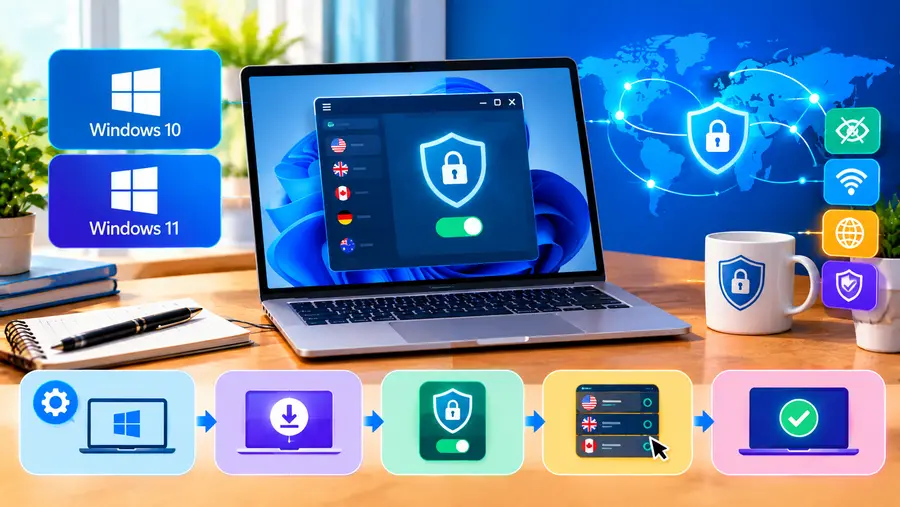
Quick Answer: How Do You Use a VPN on a Laptop?
To use a VPN on a Windows laptop:
- Choose a reputable VPN service.
- Download its official Windows app.
- Install the app on your laptop.
- Sign in or create an account if required.
- Choose a VPN server or location.
- Click Connect.
- Wait until the VPN shows that you are connected.
- Use the internet normally.
You can also configure a VPN manually through Windows Settings → Network & Internet → VPN if your VPN provider gives you the required server and login information.
What Is a VPN?
VPN stands for Virtual Private Network.
A VPN creates an encrypted connection between your laptop and a VPN server. Instead of sending your internet traffic directly through your normal internet connection, the VPN routes it through the VPN server.
This can be useful when you want additional privacy and security while using the internet.
For example, imagine you are working on your laptop at a coffee shop.
You connect to the café’s Wi-Fi and start browsing the internet. With a VPN enabled, your laptop creates a VPN connection before sending traffic through the VPN server.
This can make the connection more secure, particularly when using networks you do not control.
However, a VPN does not make you completely anonymous online. Websites, apps, cookies, browser fingerprinting, account logins, and other technologies can still identify or track activity.
Why Use a VPN on a Laptop?
There are several reasons people use VPNs on laptops.
1. Protect Your Connection on Public Wi-Fi
Public Wi-Fi is convenient, but you do not control how the network is configured.
You might connect your laptop at:
- An airport
- Hotel
- Coffee shop
- Restaurant
- Railway station
- Library
- University
- Shopping mall
- Conference venue
A VPN can provide an additional layer of protection for your internet connection.
CISA recommends taking extra precautions when using public Wi-Fi and notes that public networks may expose users to security risks.
2. Improve Privacy
A VPN can hide your normal IP address from websites you visit by routing your connection through the VPN server.
For example, without a VPN, a website may see the public IP address associated with your internet connection.
When a VPN is active, the website generally sees the VPN server’s IP address instead.
Remember that this does not mean you become completely anonymous.
3. Secure Remote Work Connections
Many businesses use VPNs to allow employees to securely connect to company networks and resources from outside the office.
If your employer provides a VPN, use the company’s instructions rather than choosing a random consumer VPN service.
4. Use the Internet While Traveling
A VPN can be useful when you travel and regularly connect your laptop to unfamiliar networks.
It is particularly useful for people who work remotely and frequently use hotel, airport, or café Wi-Fi.
How to Use a VPN on a Windows 11 Laptop
There are two common ways to use a VPN on Windows 11.
The easiest method for most people is to install the VPN provider’s official Windows application.
The second option is to configure the VPN manually using Windows’ built-in VPN settings.
Let’s look at both methods.
Method 1: Use a VPN App on Windows 11
This is usually the easiest option for beginners.
Step 1: Choose a VPN Service
First, choose a VPN service that supports Windows.
Look for features such as:
- Windows 11 support
- Clear privacy policy
- Modern encryption protocols
- Kill switch
- Automatic connection
- Multiple server locations
- DNS leak protection
- Reliable customer support
- Transparent pricing
Avoid downloading random VPN applications from unknown websites.
Always download the software from the VPN provider’s official website or a trusted app store.
Step 2: Download the VPN App
Open your browser on your Windows 11 laptop.
Visit the official website of the VPN provider you have selected.
Download the Windows application.
The downloaded file will normally be an installer, such as an .exe file.
Step 3: Install the VPN
Open the downloaded installer.
Follow the instructions on the screen.
You may need administrator permission to complete the installation.
After installation, open the VPN application.
Step 4: Sign In
If the VPN requires an account, enter your login details.
Some free VPN services may allow limited use without payment, while other services require a subscription.
Check the provider’s current plan and usage limits before signing up.
Step 5: Choose a VPN Server
Most VPN apps display a list of available locations.
For example, you might see:
- United States
- United Kingdom
- Germany
- France
- Singapore
- India
- Canada
- Australia
The available locations depend on the VPN provider.
If your main goal is speed, a nearby server is often a sensible starting point.
If you need to access a service associated with a particular country, you may need to select a server in that country, subject to the service’s rules and applicable laws.
Step 6: Click Connect
Now click the Connect button.
The VPN application will establish a connection with the selected server.
You may see a message such as:
Connected
or
VPN Protected
The exact wording depends on the VPN application.
Step 7: Check Your Connection
Once the VPN says that you are connected, open your browser and use the internet normally.
You can also check your public IP address using an IP-checking website.
If the VPN is working correctly, the public IP address shown should normally correspond to the VPN connection rather than your usual internet connection.
How to Disconnect a VPN on Windows 11
When you no longer need the VPN, open the VPN application and click:
Disconnect
Your laptop will then return to its normal internet connection.
Some VPN apps also have an automatic connection feature that lets you reconnect whenever your laptop joins a particular network.
Method 2: Set Up a VPN Manually in Windows 11
Windows 11 includes built-in VPN functionality.
However, this does not mean Windows automatically provides a free VPN service.
You still need VPN connection information from your employer, VPN provider, or another VPN service.
Microsoft’s current instructions are:
Settings → Network & internet → VPN → Add VPN
Then choose Windows (built-in) as the VPN provider.
You may need information such as:
- Connection name
- VPN server address
- VPN type
- Sign-in method
- Username
- Password
- Other authentication details
The exact information depends on the VPN service.
Windows 11 Manual Setup
- Open Settings.
- Select Network & internet.
- Select VPN.
- Click Add VPN.
- Select Windows (built-in) as the VPN provider.
- Enter a connection name.
- Enter the VPN server address.
- Select the required VPN type.
- Select the appropriate sign-in method.
- Enter your credentials if required.
- Click Save.
- Select the VPN connection.
- Click Connect.
Microsoft documents these steps for both personal and work VPN configurations.
Important Tip
Do not guess the VPN server address or VPN type.
If your VPN provider gives you specific configuration instructions, follow those settings exactly.
How to Use a VPN on a Windows 10 Laptop
The process is very similar on Windows 10.
You can either use a VPN provider’s Windows application or configure the VPN manually through Windows Settings.
Using a VPN App on Windows 10
The easiest approach is usually:
- Download the official Windows VPN application.
- Install it.
- Open the application.
- Sign in.
- Select a server.
- Click Connect.
- Wait for the connection to become active.
Once connected, you can browse the internet normally.
How to Set Up a VPN Manually on Windows 10
Windows 10 provides a built-in VPN configuration option.
Go to:
Start → Settings → Network & Internet → VPN → Add a VPN connection
Then select:
VPN provider → Windows (built-in)
You can enter the VPN connection information supplied by your VPN provider or employer.
Microsoft lists the same basic requirements for Windows 10, including the server address, VPN type, and sign-in information.
After saving the configuration:
- Go to Settings.
- Select Network & Internet.
- Select VPN.
- Select your VPN connection.
- Click Connect.
- Enter your credentials if Windows asks for them.
You can also connect through the network icon on the Windows taskbar.
Windows 10 vs Windows 11 VPN Setup
The basic VPN process is similar on both versions.
| Feature | Windows 10 | Windows 11 |
| VPN support | Yes | Yes |
| VPN app support | Yes | Yes |
| Built-in VPN settings | Yes | Yes |
| Manual VPN setup | Yes | Yes |
| VPN through Settings | Network & Internet | Network & Internet |
| VPN server configuration | Yes | Yes |
| Recommended for new PCs | Consider Windows 11 | Yes |
One important difference is the current support status.
Microsoft ended Windows 10 support on October 14, 2025. That means Windows 10 no longer receives Microsoft’s normal free security updates and technical support through Windows Update.
A VPN does not replace operating-system security updates.
If your laptop can run Windows 11, keeping the operating system supported is an important part of your overall security strategy.
How Do You Know if the VPN Is Working?
There are several simple ways to check.
Check the VPN App
The easiest method is to open the VPN application.
It should show something like:
Connected
or
Protected
Check Windows VPN Settings
Open:
Settings → Network & Internet → VPN
Your VPN connection should show as connected when active.
Microsoft also notes that Windows can display a VPN indicator in the taskbar when connected to a recognized VPN.
Check Your IP Address
You can also use an IP address checking service.
Before connecting:
Note your public IP address.
Then connect to the VPN and check again.
If the VPN is working, the public IP address should normally change to the VPN server’s public IP.
How to Choose a VPN Server for Your Laptop
You don’t always need to choose a server on the other side of the world.
For normal browsing, a nearby server is often a good starting point.
For example, if you are in India and your VPN provider has servers in or near India, you could start with a nearby location.
If the connection feels slow, try another nearby server.
For specialized purposes, you may need a different location.
The important thing is to understand why you are choosing a particular server rather than assuming that a distant server is automatically better.
Does a VPN Slow Down a Laptop?
A VPN can reduce internet performance in some situations.
Your traffic has to travel through the VPN server, and the VPN software also performs encryption and other processing.
The actual impact depends on factors such as:
- VPN protocol
- Server distance
- Server load
- Internet connection speed
- Laptop hardware
- Wi-Fi quality
- VPN software
- Network congestion
If your internet becomes noticeably slower after connecting to a VPN, try a nearby server.
You can also try another VPN protocol if your provider offers multiple options.
Does a VPN Slow Down the Laptop Itself?
Usually, the bigger difference is seen in network speed rather than general laptop performance.
However, VPN applications run in the background and use some system resources.
On a modern laptop, this may not be noticeable.
On an older or low-powered laptop, you might notice a small difference, especially if several other applications are already running.
If performance becomes an issue, close unnecessary applications and try a lightweight VPN client.
Does a VPN Drain Laptop Battery?
A VPN can use additional processing and network resources, so it may have some effect on battery life.
The impact varies significantly between laptops and VPN applications.
If battery life is important, consider:
- Using a nearby VPN server
- Closing unnecessary applications
- Using the latest VPN app
- Keeping Windows updated
- Disconnecting the VPN when you do not need it
You do not necessarily need to keep a VPN connected every second of the day.
Your usage should determine when you need it.
Should You Use a VPN on Public Wi-Fi?
A VPN can be useful on public Wi-Fi.
Public networks can have security risks because you usually do not control the network infrastructure.
CISA recommends additional precautions when using public Wi-Fi, including verifying the legitimate network name, keeping software updated, and avoiding sensitive activities on risky networks.
A practical routine is:
Connect to Wi-Fi → Start your VPN → Confirm the VPN is connected → Start browsing.
However, a VPN should not be treated as your only security measure.
You should still:
- Keep Windows updated
- Use antivirus and security software
- Use strong passwords
- Enable multi-factor authentication
- Avoid suspicious links
- Keep your browser updated
- Be careful about downloads
Can You Use a VPN Without Installing an App?
Yes.
Windows has built-in VPN functionality.
However, you normally need the correct VPN configuration details.
For many consumer VPN services, using the provider’s official Windows application is easier because the app can automatically manage server selection, authentication, protocols, and other settings.
Manual configuration can be more useful for:
- Company VPNs
- School networks
- Advanced users
- VPN services that provide manual configuration
- Specific network environments
Free VPN vs Paid VPN for a Laptop
You can find both free and paid VPN services.
A free VPN may be useful for occasional browsing or testing a VPN service.
However, free plans often have limitations.
For example, a free plan may restrict:
- Monthly data
- Server locations
- Connection speeds
- Number of devices
- Advanced features
- Streaming access
- Customer support
Paid VPN plans generally provide more features, but you should still check the provider’s current terms and privacy policy before subscribing.
Read Here: Best Free VPN for Windows 10 & 11
What Should You Look For?
Instead of choosing a VPN only because it is free, look at:
- Privacy policy
- Data collection practices
- Security features
- Supported protocols
- Server availability
- Connection limits
- Speed
- Kill switch
- DNS leak protection
- Reputation
- Price
Is a Free VPN Safe for a Laptop?
The answer depends on the specific VPN.
Do not assume that every free VPN is safe simply because it appears in an app store or search result.
Before installing one, investigate the provider’s privacy policy and business model.
Ask:
How does the company make money?
What information does it collect?
Does it have a clear privacy policy?
Does it provide security features such as a kill switch?
Who operates the service?
Also remember that a VPN provider becomes an important part of your internet connection because your traffic is routed through its infrastructure.
Read Here: Is Your VPN Quantum-Safe?
What Is a VPN Kill Switch?
A VPN kill switch is a security feature designed to prevent your device from sending internet traffic outside the VPN connection if the VPN disconnects unexpectedly.
For example:
You are connected to a VPN.
The VPN connection suddenly drops.
Without appropriate protection, your laptop may return to its normal internet connection.
With a kill switch enabled, the VPN application may block internet traffic until the VPN connection is restored.
The exact behavior depends on the VPN provider and its software.
For people who frequently use VPNs on public Wi-Fi, a kill switch can be a useful feature.
How to Fix a VPN That Won’t Connect on a Laptop
Sometimes a VPN simply refuses to connect.
Don’t panic.
Try these steps one by one.
1. Check Your Internet Connection
First, make sure your normal Wi-Fi or Ethernet connection is working.
Open a website without the VPN.
If the internet does not work without the VPN, the problem may be your normal network connection.
2. Try Another VPN Server
The selected VPN server may be overloaded or temporarily unavailable.
Choose another server and try again.
A nearby server is usually a good place to start.
3. Restart the VPN Application
Close the VPN application completely.
Open it again.
Then try connecting.
4. Restart Your Laptop
A simple restart can sometimes resolve network or software problems.
Restart Windows and try the VPN again.
5. Try Another VPN Protocol
Some VPN applications allow you to choose between different protocols.
If one protocol does not work properly on your network, another may work better.
Only change these settings if your VPN provider supports them and explains how to use them.
6. Temporarily Check Firewall or Security Software
Sometimes security software can interfere with VPN connections.
Do not permanently disable your firewall or antivirus just to make a VPN work.
Instead, check whether the VPN application is being blocked and follow the security software’s instructions for allowing a trusted application.
7. Update the VPN Application
Make sure you are running the latest version of the VPN application.
Older versions can contain bugs or compatibility problems.
CISA also recommends keeping software and devices updated as part of basic security hygiene.
VPN Connected but Internet Is Not Working
This is another common problem.
If the VPN says Connected but websites do not load, try:
- Disconnect the VPN.
- Confirm that normal internet access works.
- Reconnect to the VPN.
- Try another server.
- Try another VPN protocol.
- Restart the VPN application.
- Restart the laptop.
- Check the VPN provider’s troubleshooting instructions.
If the problem happens only with one server, the server itself may be the issue.
VPN Disconnects Frequently
If your VPN keeps disconnecting, check:
- Wi-Fi signal strength
- VPN server distance
- VPN protocol
- VPN application version
- Laptop power-saving settings
- Network congestion
- Router stability
Try a different VPN server first.
If the problem continues, check the VPN provider’s support documentation.
How to Turn Off a VPN on Windows
Turning off a VPN is simple.
If you are using a VPN application:
Open the VPN app → Click Disconnect.
If you configured the VPN through Windows:
Settings → Network & Internet → VPN → Select the VPN → Disconnect
Windows also provides VPN controls through the network area of the taskbar.
Should You Leave a VPN On All the Time?
There is no universal rule that says you must keep a VPN connected all the time.
It depends on how you use your laptop.
You might want to keep it connected when:
- Using public Wi-Fi
- Working remotely
- Traveling
- Using networks you do not trust
- Your organization’s security policy requires it
You might disconnect when:
- A website or service does not work correctly through the VPN
- You need your normal IP address for a specific service
- The VPN is causing a compatibility problem
- You are troubleshooting your internet connection
If you use a work VPN, follow your employer’s security policy.
Common VPN Mistakes to Avoid
Using a VPN is not difficult, but beginners often make a few mistakes.
Mistake 1: Downloading a Random VPN
Do not install an unknown VPN simply because it is free.
Research the provider first.
Mistake 2: Assuming a VPN Provides Complete Anonymity
A VPN improves privacy in certain ways, but it does not make you invisible online.
Mistake 3: Ignoring Software Updates
Keep Windows, your browser, and your VPN application updated.
Mistake 4: Choosing a Very Distant Server
A faraway server can increase latency and may reduce performance.
Try a nearby server when speed is your priority.
Mistake 5: Thinking a VPN Replaces Antivirus
It does not.
A VPN and antivirus software solve different security problems.
Mistake 6: Using an Untrusted VPN for Sensitive Activities
Always investigate the VPN provider before routing your internet traffic through its servers.
VPN on Laptop: Best Settings for Beginners
If you are new to VPNs, you do not need to change dozens of advanced settings.
A simple setup is often enough.
Consider enabling:
- Automatic connection when appropriate
- Kill switch
- DNS leak protection, if offered
- Automatic updates
- Nearby server selection
Then leave advanced protocol settings at their recommended defaults unless you have a specific reason to change them.
VPN for Laptop While Traveling
A VPN can be useful if you regularly travel with your laptop.
Before connecting to hotel, airport, or café Wi-Fi:
- Confirm the correct Wi-Fi network.
- Connect to the network.
- Open your VPN.
- Connect to a trusted VPN server.
- Confirm that the VPN is active.
- Then start your online work.
CISA specifically warns that public Wi-Fi networks may not always be secure and recommends precautions such as verifying the legitimate hotspot and keeping software updated.
A VPN is one layer of protection. It should be combined with normal security practices.
VPN vs Proxy: What’s the Difference?
A VPN and proxy server can both route traffic through another server, but they are not exactly the same.
A proxy generally acts as an intermediary for particular traffic or applications.
A VPN is designed to create a broader encrypted connection between your device and the VPN endpoint.
Windows treats proxy and VPN settings separately.
For everyday users who specifically need a VPN, using a reputable VPN application is usually simpler than trying to combine a proxy with a VPN.
Does Windows Have a Free Built-In VPN?
Windows has built-in VPN configuration functionality, but Windows does not provide a general-purpose free VPN service with its own worldwide VPN server network.
This is an important distinction.
Windows allows you to configure a VPN connection.
You still need access to a VPN server, such as one provided by your employer or a VPN service.
Can I Use a VPN on a Laptop Without Wi-Fi?
Yes.
A VPN does not require Wi-Fi specifically.
You can use a VPN over different internet connections, including:
- Ethernet
- Wi-Fi
- Mobile hotspot
- USB tethering
The important requirement is that your laptop has an active internet connection.
Can I Use a VPN on an Old Laptop?
Yes.
VPN applications can work on many older laptops, provided the operating system and VPN application meet the provider’s requirements.
However, older hardware may experience more noticeable performance overhead.
If your laptop is old, look for a VPN application that is lightweight and supports your operating system.
Also remember that security updates are important.
If your laptop is still running Windows 10, Microsoft’s support ended on October 14, 2025. Consider upgrading to a supported operating system if your hardware allows it.
A Simple VPN Routine for Laptop Users
If you want to keep things simple, use this routine:
At Home
Connect to your normal Wi-Fi.
Open your VPN if you need it.
At a Café
Connect to the correct Wi-Fi network.
Start your VPN before doing sensitive work.
At an Airport
Verify the official Wi-Fi network.
Connect your VPN.
Avoid unnecessary sensitive activity on an untrusted network.
While Traveling
Keep your VPN application updated.
Use a nearby server when speed matters.
When Finished
Disconnect the VPN if you do not need it.
This simple routine can make VPN usage much easier.
Read Here: Download these 10 Best Free VPN for PC
Frequently Asked Questions About Using a VPN on a Laptop
How do I use a VPN on my laptop?
Install a reputable VPN application, sign in, select a server, and click Connect. You can also configure a VPN manually through Windows Settings if you have the required VPN server and login information.
How do I connect a VPN to a Windows 11 laptop?
Open Settings → Network & internet → VPN. You can either add a VPN connection manually or use a VPN provider’s Windows application.
How do I connect a VPN to a Windows 10 laptop?
Open Settings → Network & Internet → VPN. You can add a VPN connection manually or install your VPN provider’s Windows application.
Is there a free VPN for a laptop?
Yes. Some VPN providers offer free plans. However, free plans can have restrictions such as limited data, fewer server locations, slower speeds, or fewer features. Always check the provider’s current terms.
Does a VPN protect my laptop from viruses?
No. A VPN is not antivirus software.
A VPN primarily protects the network connection between your device and the VPN server. You should still use security software, keep Windows updated, and avoid suspicious downloads and links.
Does a VPN hide my IP address?
A VPN normally replaces the public IP address visible to websites with the IP address of the VPN server. However, a VPN does not provide complete anonymity.
Can I use a VPN on public Wi-Fi?
Yes. A VPN can provide an additional layer of protection when using public Wi-Fi. You should still verify the network, keep your software updated, and avoid risky online behavior.
Does a VPN make the internet slower?
It can. Speed depends on the VPN server, distance, protocol, network quality, VPN software, and your original internet connection.
Can I use a VPN without installing software?
Yes. Windows supports manual VPN configuration. However, you need the correct VPN server and authentication details.
Why is my VPN connected but the internet is not working?
Try another VPN server, reconnect the VPN, restart the VPN application, check your normal internet connection, and try another supported VPN protocol.
Should I use a VPN all the time?
Not necessarily. Many people use a VPN when traveling, working remotely, or connecting to public Wi-Fi. Your needs and the VPN provider’s features should determine when you keep it connected.
Is a VPN completely anonymous?
No.
A VPN can improve privacy and hide your public IP address from websites, but it does not eliminate other forms of online tracking or identification.
Final Thoughts
Using a VPN on a laptop is much easier than many people think.
For most beginners, the simplest method is to install the VPN provider’s official Windows application, sign in, select a server, and click Connect.
Windows 10 and Windows 11 also include built-in VPN configuration options if you need to set up a VPN manually.
The most important thing is to choose your VPN carefully. A VPN becomes part of your internet connection, so privacy policies, security features, software quality, and the provider’s reputation all matter.
And remember: a VPN is only one part of good online security.
Keep Windows and your applications updated, use strong passwords, enable multi-factor authentication, be careful with public Wi-Fi, and avoid suspicious links and downloads.
With those habits, using a VPN on your laptop can be simple, practical, and much easier to manage.